> For the complete documentation index, see [llms.txt](https://docs.enginsight.com/docs/llms.txt). Markdown versions of documentation pages are available by appending `.md` to page URLs; this page is available as [Markdown](https://docs.enginsight.com/docs/manual/english/platform-usage/penetration-testing/management/audit-definitions.md).

# Audit Definitions

Audit definitions allow you to create reusable templates for your penetration tests and ensure comparable results across multiple audit runs.

***

<i class="fa-compass">:compass:</i> Navigate to **Penetration Tests** → **Audit Definitions** to show a list of all audit templates. If you have not created an audit template yet, this view is empty.

<figure><img src="https://2423388680-files.gitbook.io/~/files/v0/b/gitbook-x-prod.appspot.com/o/spaces%2FV7OrHgKXA0t1jankQBYf%2Fuploads%2F822c7viA7L9ZJSYhadmh%2Fenginsight-screenshot-penetrations%20testing-management-audit%20definitions.jpg?alt=media&amp;token=910894cd-c6c4-410d-a874-764a2467e9bf" alt=""><figcaption></figcaption></figure>

The [audit definition overview](#audit-definitions-overview) provides information such as:

* when an audit definition was created and last modified.
* whether and when an audit is scheduled to run automatically.
* which audits have already been performed based on an audit definition.
* which Hacktor was used to perform a penetration test on which target systems.

You can also [add new audit definitions](#add-audit-definition) and [start a penetration testing audit](#start-penetration-testing-audit).

***

## Navigation

<i class="fa-computer-mouse">:computer-mouse:</i> Click the <i class="fa-magnifying-glass">:magnifying-glass:</i> **Search** field above the list and enter any search term to find specific list items.

<i class="fa-computer-mouse-scrollwheel">:computer-mouse-scrollwheel:</i> Scroll down the list or adjust the number of results displayed per page: ![](https://2423388680-files.gitbook.io/~/files/v0/b/gitbook-x-prod.appspot.com/o/spaces%2FV7OrHgKXA0t1jankQBYf%2Fuploads%2FfjKACCt2SKXcFd3S7Xb5%2FEnginsight-EN-Results%20per%20Page.jpg?alt=media\&token=e1650160-7a41-4965-aaca-6975db758dbe) to view additional entries. Use the page navigation controls: ![](https://content.gitbook.com/content/V7OrHgKXA0t1jankQBYf/blobs/wnxVw06QGoSsYjhwMJRF/Enginsight-Seitennavigation-2.jpg) to switch between multiple pages.

### Filtering the List

<i class="fa-computer-mouse">:computer-mouse:</i> Click the search bar above the list to expand all available filters and filter the list by predefined parameters.

<details>

<summary>Available Filters</summary>

<table><thead><tr><th width="179.6875">Parameter</th><th width="116.515625">Type</th><th>Description</th></tr></thead><tbody><tr><td>Authentication Provider</td><td>String</td><td>Filter by a specific authentication provider or exclude it from the results. All available authentication providers are shown.</td></tr><tr><td>Scheduled Execution</td><td>Boolean</td><td><p>Filter based on whether a scheduled execution has been configured for an audit definition or not.<br></p><p>The following values are available:</p><ul><li><strong>True</strong>: The audit definition includes the scheduled execution of a penetration test.</li><li><strong>False</strong>: The audit definition does not include the scheduled execution of a penetration test.</li></ul></td></tr><tr><td>Hacktor</td><td>String</td><td>Filter by a specific Hacktor or exclude it from the results. All available Hacktors are shown.</td></tr><tr><td>Target Systems</td><td>String</td><td>Filter by a specific target system or exclude it from the results. All available target systems are shown.</td></tr></tbody></table>

</details>

### Sorting List Items

<i class="fa-computer-mouse">:computer-mouse:</i> Click the **Sort** icon <i class="fa-sort">:sort:</i> next to a column name in the table header to sort by that column in ascending order <i class="fa-angle-up">:angle-up:</i> or descending order <i class="fa-chevron-down">:chevron-down:</i>.

### Further Actions for List Items

The following additional actions are available for each list item:

<table><thead><tr><th width="200.23046875">Action</th><th>Description</th></tr></thead><tbody><tr><td>Start Pentesting Audit</td><td><i class="fa-computer-mouse">:computer-mouse:</i> Click <strong>Start Pentesting Audit</strong> to open a new window in which you can configure additional options and <a href="#starting-an-audit">start the audit</a>.</td></tr><tr><td>Edit</td><td><i class="fa-computer-mouse">:computer-mouse:</i> Click the <strong>Edit</strong> icon <i class="fa-pencil">:pencil:</i> to open the <a href="#audit-definition-edit-view">edit view</a> of the respective audit definition.</td></tr><tr><td>Delete</td><td><p><i class="fa-computer-mouse">:computer-mouse:</i> Click the <strong>Delete</strong> icon <i class="fa-trash">:trash:</i> and confirm the prompt by clicking <strong>Delete Permanently</strong> to remove the audit definition.</p><div data-gb-custom-block data-tag="hint" data-style="danger" class="hint hint-danger"><p><strong>Please note</strong>: Deleted audit definitions cannot be recovered.</p></div></td></tr></tbody></table>

***

## Audit Definitions: Overview

The audit definition overview is structured as a table.

<figure><img src="https://2423388680-files.gitbook.io/~/files/v0/b/gitbook-x-prod.appspot.com/o/spaces%2FV7OrHgKXA0t1jankQBYf%2Fuploads%2FtTJDMPdn2pZclBbFm6o3%2Fenginsight-screenshot-penetrations%20testing-management-audit%20definitions-overview.jpg?alt=media&amp;token=4d08c6a4-19be-46c4-bff0-695d6b4bf928" alt=""><figcaption></figcaption></figure>

The following information is shown:

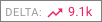
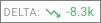
<table><thead><tr><th width="254.921875">Column</th><th>Description</th></tr></thead><tbody><tr><td>Name</td><td><p>Shows the custom name of the audit definition and an additional description, if provided. The date and time of creation and last edit are also shown.</p><p></p><p>If you have configured a <a href="/docs/manual/english/platform-usage/penetration-testing/management/audit-definitions/add-audit-definition.md#scheduled-execution">scheduled execution</a>, the time, days of the week, and time zone of the scheduled execution are also shown.<br><br><i class="fa-computer-mouse">:computer-mouse:</i> Click the name of an audit definition to navigate to the respective <a href="#audit-definition-edit-view">edit view</a>. Here you can adjust configured settings and delete the audit definition.</p></td></tr><tr><td>Related Audits</td><td><p>Shows a list of all audits performed based on the respective audit definition and the calculated risk score (<strong>Risk</strong>) for each audit.<br></p><p>The <strong>Delta</strong> of the calculated risk score compared with the previous audit run is also shown:</p><ul><li><img src="https://content.gitbook.com/content/V7OrHgKXA0t1jankQBYf/blobs/XbkHCNBvfgsKjWmKvkGr/enginsight-screenshot-penetrationstest-mangement-audit%20definition-u%CC%88bersicht-delta%20gestiegen.jpg" alt="">: The risk score has increased.</li><li><img src="https://content.gitbook.com/content/V7OrHgKXA0t1jankQBYf/blobs/YtTrQFXf2qeFjwoe4dTf/enginsight-screenshot-penetrationstest-mangement-audit%20definition-u%CC%88bersicht-delta%20gesunken.jpg" alt="">: The risk score has decreased.</li></ul></td></tr><tr><td>Hacktors &#x26; Target Groups</td><td>Shows the <a href="/docs/manual/english/platform-usage/penetration-testing/required-services/hacktors.md">Hacktor</a> that is assigned to the respective audit definition, the assigned <a href="/docs/manual/english/platform-usage/penetration-testing/management/target-groups.md">target groups</a>, and the assigned custom <a href="/docs/manual/english/platform-usage/penetration-testing/management/auth-providers.md">auth-providers</a>.<br><br><i class="fa-computer-mouse">:computer-mouse:</i> Click the name of a Hacktor, target group, or provider to navigate to the respective edit view.</td></tr></tbody></table>

***

## Adding an Audit Definition

<i class="fa-computer-mouse">:computer-mouse:</i> Click <i class="fa-plus">:plus:</i> **Create Audit Definition** in the upper-right corner to [add a new audit definition](/docs/manual/english/platform-usage/penetration-testing/management/audit-definitions/add-audit-definition.md).

***

## Audit Definition: Edit View

<i class="fa-computer-mouse">:computer-mouse:</i> Click an entry in the list to navigate to the respective edit view. Here you can adjust [configured settings](/docs/manual/english/platform-usage/penetration-testing/management/audit-definitions/add-audit-definition.md#general-settings) and delete the audit definition.

You can also find an overview of all audits that have already been performed based on the respective audit definition.

The following actions are available:

<table><thead><tr><th width="200.39453125">Option</th><th>Description</th></tr></thead><tbody><tr><td>Save Changes</td><td><p><i class="fa-computer-mouse">:computer-mouse:</i> Click <strong>Save Changes</strong> after adjusting any settings.</p><div data-gb-custom-block data-tag="hint" data-style="danger" class="hint hint-danger"><p><strong>Please note:</strong> Unsaved changes cannot be recovered.</p></div></td></tr><tr><td>Back</td><td><i class="fa-computer-mouse">:computer-mouse:</i> Click <strong>Back</strong> to return to the list overview.</td></tr><tr><td>Remove</td><td><p><i class="fa-computer-mouse">:computer-mouse:</i> Click <strong>Remove</strong>, then confirm the prompt that appears to delete the object that you are editing.</p><div data-gb-custom-block data-tag="hint" data-style="danger" class="hint hint-danger"><p><strong>Please note:</strong> Deleted objects cannot be recovered.</p></div></td></tr></tbody></table>

### Audit Runs: Overview

As soon as an audit has been performed based on the respective audit definition, the **Related Audits** section appears in the audit definition's edit view. It is structured as a table.

<div align="left"><figure><img src="https://2423388680-files.gitbook.io/~/files/v0/b/gitbook-x-prod.appspot.com/o/spaces%2FV7OrHgKXA0t1jankQBYf%2Fuploads%2FcwARXWNBeNLJPMzsHITw%2FEnginsight-Penetrationstests-Audit%20Definitionen-Durchfuehrung.jpg?alt=media&amp;token=1aa90766-a962-4e61-9b9c-d467e3b25bc5" alt=""><figcaption></figcaption></figure></div>

The following information is shown:

<table><thead><tr><th width="199.734375">Column</th><th>Description</th></tr></thead><tbody><tr><td>Name</td><td><p>Shows the automatically assigned name of the completed audit. The date and time when the audit was performed is also shown.</p><p></p><p><i class="fa-computer-mouse">:computer-mouse:</i> Click the name of an audit to navigate to the respective <a href="/docs/manual/english/platform-usage/penetration-testing/audits.md#audit-detail-view">audit detail view</a>.</p></td></tr><tr><td>Risk Score</td><td><p>Shows the risk score calculated for the audit.</p><div data-gb-custom-block data-tag="hint" data-style="success" data-icon="lightbulb" class="hint hint-success"><p>For more information on how the Enginsight-specific risk score is calculated, see our Knowledge Base: <a href="https://docs.enginsight.com/docs/knowledge-base/english/risk-scores/how-is-enginsights-own-risk-score-calculated">How is Enginsight's own risk score calculated?</a></p></div></td></tr></tbody></table>

***

## Starting an Audit

<i class="fa-eye">:eye:</i> This window is only shown when you click **Start Pentesting Audit** at the end of a list item in the audit definition overview.

<div align="left"><figure><img src="https://2423388680-files.gitbook.io/~/files/v0/b/gitbook-x-prod.appspot.com/o/spaces%2FV7OrHgKXA0t1jankQBYf%2Fuploads%2F8KufZDUb400WdkI4vkIL%2Fenginsight-screenshot-penetrations%20testing-management-audit%20definitions-overview-start%20pentesting%20audit.jpg?alt=media&amp;token=27dd3eeb-98c0-46d9-b005-9221c9e57d01" alt="" width="375"><figcaption></figcaption></figure></div>

The following options are available:

<table><thead><tr><th width="220.12109375">Option</th><th>Description</th></tr></thead><tbody><tr><td>Alias</td><td><p>Enter a custom display name for the audit.</p><div data-gb-custom-block data-tag="hint" data-style="info" class="hint hint-info"><p>This field is optional.</p></div></td></tr><tr><td>Audit Definition</td><td><p>Select the audit template that should be used for the audit.</p><div data-gb-custom-block data-tag="hint" data-style="info" class="hint hint-info"><p>The default audit definition corresponds to the list item for which you clicked <strong>Start Pentesting Audit</strong>.</p></div><p><i class="fa-computer-mouse">:computer-mouse:</i> Click the <strong>Audit Definition</strong> field to expand a list of all available audit templates, and select an audit definition.<br><br><i class="fa-computer-mouse">:computer-mouse:</i> Click the <strong>Remove</strong> icon <i class="fa-circle-xmark">:circle-xmark:</i> next to an audit template to remove it from the list.</p></td></tr><tr><td>I am authorized to perform this scan</td><td><p>Enable this option to confirm that you are authorized to audit the <a href="/docs/manual/english/platform-usage/penetration-testing/management/target-groups.md">selected target groups</a>.</p><div data-gb-custom-block data-tag="hint" data-style="danger" class="hint hint-danger"><p><strong>Please note</strong>: For data protection reasons, penetration tests may only be performed by authorized persons. Any violation may have legal consequences. Please also read our <a href="https://enginsight.com/en/terms/">Terms and Conditions</a>.</p></div><div data-gb-custom-block data-tag="hint" data-style="warning" class="hint hint-warning"><p><strong>Please note</strong>: This is a required field. The audit can only be started after you confirm that you are authorized to perform the penetration test.</p></div><p><i class="fa-computer-mouse">:computer-mouse:</i> Select or deselect the checkbox <i class="fa-square">:square:</i> next to the option to enable or disable it.</p></td></tr></tbody></table>

<i class="fa-computer-mouse">:computer-mouse:</i> Click **Start Pentesting Audit** to start the audit based on the selected audit definition.

***

## Further Resources

**Knowledge Base**

* [How is Enginsight's own risk score calculated?](https://docs.enginsight.com/docs/knowledge-base/english/risk-scores/how-is-enginsights-own-risk-score-calculated)

***