
# White Label

Enginsight offers you a wide range of options for adapting your [on-premises installation](#on-premises) to your corporate identity and implementing white labeling. For example, you can incorporate your own logo or customize the accent color.

Our [SaaS platform](#saas) also offers you personalization options. You can add your logo to the PDF reports and the platform.

## On-Premises

{% hint style="warning" %}
If you customize a **configuration file** on the application server, you must always run **`setup.sh` afterwards**. Only then will the settings be applied.
{% endhint %}

1\. Upload your own logo at Settings → Organisation → Corporate Design.

{% hint style="info" %}
The logo you upload within the platform will be used for your reports and displayed on the dashboard. In addition, the logo will be displayed in the top left corner unless you have stored a logo in the UI module configuration file with `logoIcon`.
{% endhint %}

2\. Store the contact data of your support at Settings → Support.

3\. Log in to the application server with root privileges (SSH or console).

```
su
```

4\. Open the configuration file of the UI module with `nano`.

```
sudo nano /opt/enginsight/enterprise/conf/ui-m1/environment.js
```

5\. To customize the Enginsight platform according to your corporate design, add the `corporateIdentity` section.

```
corporateIdentity: {
    colors: {
        primaryH: '',
        primaryS: '',
        primaryL: ''
    },
    tabTitle: '',    
    favicon: '',
    company: '',
    companySlug: '',
    about: '',
    website: '',
    logo: '',
    logoIcon: '',
    offlineBackgroundImage: '',
    offlineBackgroundImageWithoutText: false
},
```

{% hint style="warning" %}
Make sure that the accent color **isn't too bright and white font on it is well readable**.\
To convert a HEX color code to the HSL model, you can find numerous converters on the Internet.
{% endhint %}

| Attribute Name                      | Format                                                | Description                                                                                                                                                                                                                                                                                                                             |
| ----------------------------------- | ----------------------------------------------------- | --------------------------------------------------------------------------------------------------------------------------------------------------------------------------------------------------------------------------------------------------------------------------------------------------------------------------------------- |
| `colors`                            | HSL                                                   | Assign the accent color for the Enginsight platform in the HSL color model.                                                                                                                                                                                                                                                             |
| `tabTitle`                          | Specify the title to be displayed in the browser tab. |                                                                                                                                                                                                                                                                                                                                         |
| `favicon`                           | <p>.ico</p><p>.png</p>                                | Customize the favicon to be specified in the browser tab next to the page title. Use a direct and full path (not internal): e.g. `https://company.com/favicon.ico`.                                                                                                                                                                     |
| `company`                           | Specify the name of your organisation.                |                                                                                                                                                                                                                                                                                                                                         |
| `companySlug`                       | Specify the short name of your organisation.          |                                                                                                                                                                                                                                                                                                                                         |
| `about`                             |                                                       | Specify a description text of your organisation.                                                                                                                                                                                                                                                                                        |
| `website`                           |                                                       | Specify the website of your organisation.                                                                                                                                                                                                                                                                                               |
| `logo`                              | .svg                                                  | Store your entire logo (e.g. word and picture mark). To do this, insert the logo as an .svg file directly into the configuration file.                                                                                                                                                                                                  |
| `logoIcon`                          | .svg                                                  | <p>Store an (approximately) square logo (e.g. only image mark). To do this, insert the logo as an .svg file directly into the configuration file.</p><p>The <code>logoIcon</code> is displayed within the platform on the top left.</p>                                                                                                 |
| `offlineBackgroundImage`            | <p>.jpeg</p><p>.png</p>                               | Optionally define a background image for the login page. Use a direct and complete path (not internal): e.g. `https://webseite.com/imges/background.png`.                                                                                                                                                                               |
| `offlineBackgroundImageWithoutText` |                                                       | <p>Assign either the value true or false.<br><br><code>false</code>: Logo, name, description and website of the organisation are located in front of the background image.<br><br><code>true</code>: The organisation's logo, name, description and website are not displayed. Instead, the logo is located above the login screen.</p> |

### Examples for Corporate Identity

#### Example: Login without background image

```
corporateIdentity: {
    colors: {
        primaryH: '208',
        primaryS: '66%',
        primaryL: '60%'
    },
    tabTitle: 'Company Security',
    favicon: 'https://company.com/favicon.ico',
    company: 'Company GmbH',
    companySlug: 'Company',
    about: 'Best Security Monitoring of the world',
    website: 'www.company.com',
    logo: '<svg xmlns="http://www.w3.org/2000/svg" xmlns:xlink="http://www.w3.org/1999/xlink" viewBox="0 0 410.84 87.9"><defs><style>.cls-1{fill:url(#linear-gradient);}.cls-2{fill:#58595b;}</style><linearGradient id="linear-gradient" x1="39.42" x2="39.42" y2="87.9" gradientUnits="userSpaceOnUse"><stop offset="0" stop-color="#fc7808"/><stop offset="0.43" stop-color="#ff006c"/><stop offset="0.79" stop-color="#8338ea"/><stop offset="1" stop-color="#3887fe"/></linearGradient></defs><g id="OBJECTS"><path class="cls-1" d="M39.42,14.1l2.71,1.56V6.27L39.42,4.7,36.7,6.27v9.39ZM59.84,32.16,65.27,29,42.13,15.66v6.27ZM0,24.32V63.58l5.43-3.13v-33Zm78.84-3.13L42.13,0V6.27L73.41,24.33ZM2.71,68.27l34,19.63V81.63L8.14,65.14ZM36.7,0l-34,19.62,5.43,3.14L36.7,6.27Zm-15,30.59,15-8.66V15.66L16.28,27.46ZM39.42,73.8,36.7,72.24v9.39l2.72,1.57,2.71-1.57V72.24ZM59.84,55.74,42.13,66v6.27L65.27,58.87ZM42.13,81.63V87.9L78.84,66.71l-5.43-3.14ZM13.57,29l2.71-1.57-8.14-4.7L5.43,24.33v3.12l8.14,4.7ZM36.7,66l-15-8.66-5.43,3.13L36.7,72.24ZM19,52.61V35.29l-5.42-3.14v23.6Zm-5.42,6.26V55.75l-8.14,4.7v3.12l2.71,1.57,8.14-4.7Z"/><path class="cls-2" d="M104.2,44c0-11.91,9.11-20.35,21.52-20.35,7.21,0,13,2.63,16.82,7.38l-7,6.37a11.57,11.57,0,0,0-9.22-4.58c-6.43,0-10.9,4.47-10.9,11.18s4.47,11.18,10.9,11.18a11.57,11.57,0,0,0,9.22-4.58l7,6.37c-3.8,4.75-9.61,7.37-16.82,7.37C113.31,64.29,104.2,55.85,104.2,44Z"/><path class="cls-2" d="M144.61,44c0-11.74,9.22-20.35,21.74-20.35S188.1,32.21,188.1,44s-9.23,20.34-21.75,20.34S144.61,55.69,144.61,44Zm32.31,0c0-6.76-4.64-11.18-10.57-11.18S155.79,37.19,155.79,44s4.64,11.18,10.56,11.18S176.92,50.71,176.92,44Z"/><path class="cls-2" d="M229.23,63.51l-.11-20.73L219.06,59.66h-4.92l-10-16.33V63.51H193.91V24.39H203L216.77,47l13.41-22.58h9.12l.11,39.12Z"/><path class="cls-2" d="M282.5,38.86c0,8.89-6.7,14.42-17.38,14.42H258.3V63.51H247.23V24.39h17.89C275.8,24.39,282.5,29.92,282.5,38.86Zm-11.18,0c0-3.63-2.29-5.75-6.87-5.75H258.3V44.56h6.15C269,44.56,271.32,42.44,271.32,38.86Z"/><path class="cls-2" d="M312.13,55.91H295.58l-3.07,7.6H281.22l17.27-39.12h10.9l17.33,39.12H315.2Zm-3.24-8.16-5-12.52-5,12.52Z"/><path class="cls-2" d="M367.07,24.39V63.51H358L340.69,42.66V63.51H329.85V24.39H339l17.27,20.84V24.39Z"/><path class="cls-2" d="M395.86,49.48v14H384.79V49.31L369.87,24.39h11.68l9.28,15.54,9.28-15.54h10.73Z"/></g></svg>',
    logoIcon: '<svg xmlns="http://www.w3.org/2000/svg" xmlns:xlink="http://www.w3.org/1999/xlink" viewBox="0 0 78.84 87.9"><defs><style>.cls-1{fill:url(#linear-gradient);}</style><linearGradient id="linear-gradient" x1="39.42" x2="39.42" y2="87.9" gradientUnits="userSpaceOnUse"><stop offset="0" stop-color="#fc7808"/><stop offset="0.43" stop-color="#ff006c"/><stop offset="0.79" stop-color="#8338ea"/><stop offset="1" stop-color="#3887fe"/></linearGradient></defs><g id="OBJECTS"><path class="cls-1" d="M39.42,14.1l2.71,1.56V6.27L39.42,4.7,36.7,6.27v9.39ZM59.84,32.16,65.27,29,42.13,15.66v6.27ZM0,24.32V63.58l5.43-3.13v-33Zm78.84-3.13L42.13,0V6.27L73.41,24.33ZM2.71,68.27l34,19.63V81.63L8.14,65.14ZM36.7,0l-34,19.62,5.43,3.14L36.7,6.27Zm-15,30.59,15-8.66V15.66L16.28,27.46ZM39.42,73.8,36.7,72.24v9.39l2.72,1.57,2.71-1.57V72.24ZM59.84,55.74,42.13,66v6.27L65.27,58.87ZM42.13,81.63V87.9L78.84,66.71l-5.43-3.14ZM13.57,29l2.71-1.57-8.14-4.7L5.43,24.33v3.12l8.14,4.7ZM36.7,66l-15-8.66-5.43,3.13L36.7,72.24ZM19,52.61V35.29l-5.42-3.14v23.6Zm-5.42,6.26V55.75l-8.14,4.7v3.12l2.71,1.57,8.14-4.7Z"/></g></svg>',
    offlineBackgroundImage: '',
    offlineBackgroundImageWithoutText: false
},
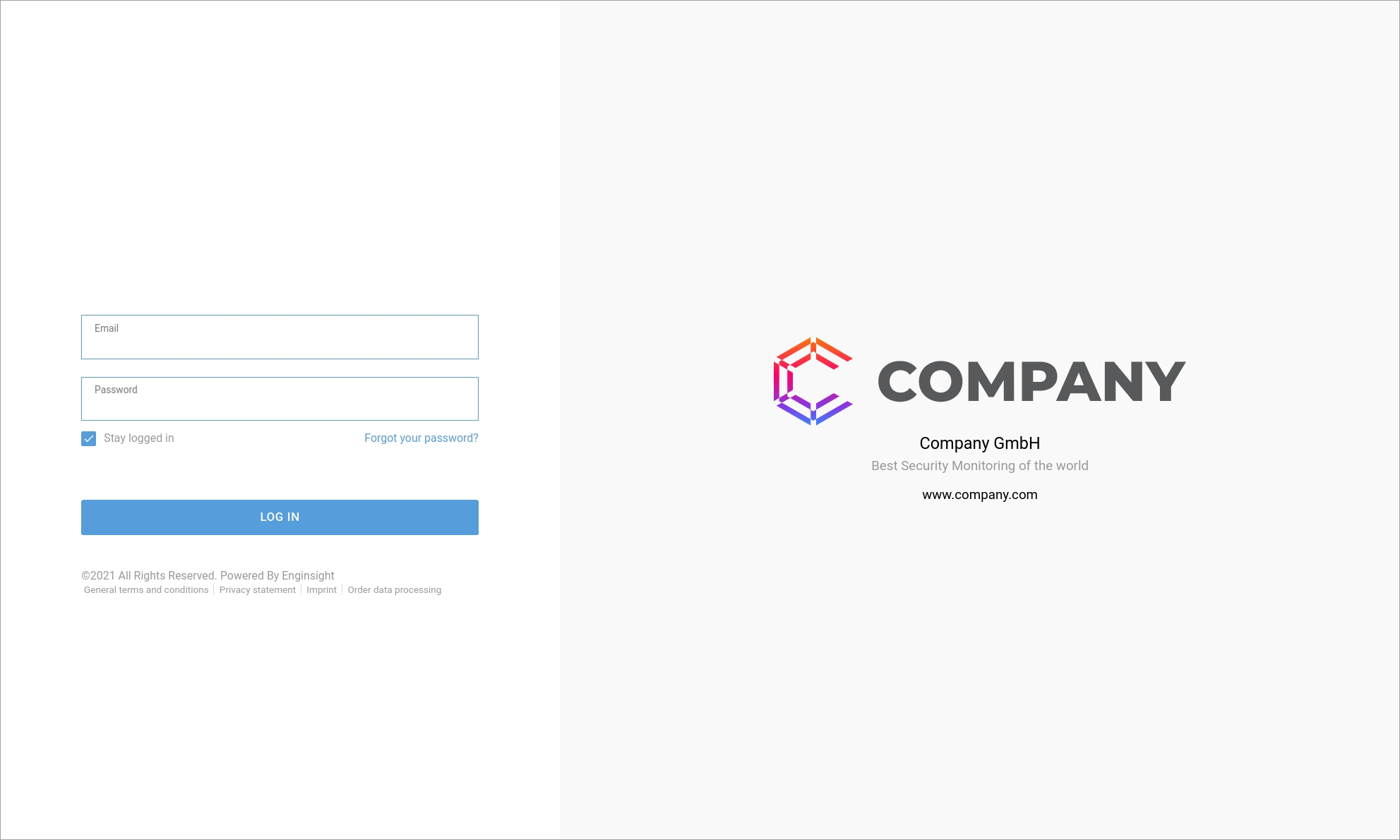
```

![](https://97980696-files.gitbook.io/~/files/v0/b/gitbook-legacy-files/o/assets%2F-LTMe1v0eboWCAUTQHbT%2F-MbM2qW6emOrc9rUiXve%2F-MbM8q5lYyARKDrRa49X%2FCI_Login_ohne_Hintergrund.png?alt=media\&token=48fc9e14-e41c-4b90-a8a6-f086cf25a8f1)

#### Example: Login with background image and `offlineBackgroundImageWithoutText: true`.

```
corporateIdentity: {
    colors: {
        primaryH: '208',
        primaryS: '66%',
        primaryL: '60%'
    },
    tabTitle: 'Company Security',
    favicon: 'https://company.com/favicon.ico',
    company: 'Company GmbH',
    companySlug: 'Company',
    about: 'Best Security Monitoring of the world',
    website: 'www.company.com',
    logo: '<svg xmlns="http://www.w3.org/2000/svg" xmlns:xlink="http://www.w3.org/1999/xlink" viewBox="0 0 410.84 87.9"><defs><style>.cls-1{fill:url(#linear-gradient);}.cls-2{fill:#58595b;}</style><linearGradient id="linear-gradient" x1="39.42" x2="39.42" y2="87.9" gradientUnits="userSpaceOnUse"><stop offset="0" stop-color="#fc7808"/><stop offset="0.43" stop-color="#ff006c"/><stop offset="0.79" stop-color="#8338ea"/><stop offset="1" stop-color="#3887fe"/></linearGradient></defs><g id="OBJECTS"><path class="cls-1" d="M39.42,14.1l2.71,1.56V6.27L39.42,4.7,36.7,6.27v9.39ZM59.84,32.16,65.27,29,42.13,15.66v6.27ZM0,24.32V63.58l5.43-3.13v-33Zm78.84-3.13L42.13,0V6.27L73.41,24.33ZM2.71,68.27l34,19.63V81.63L8.14,65.14ZM36.7,0l-34,19.62,5.43,3.14L36.7,6.27Zm-15,30.59,15-8.66V15.66L16.28,27.46ZM39.42,73.8,36.7,72.24v9.39l2.72,1.57,2.71-1.57V72.24ZM59.84,55.74,42.13,66v6.27L65.27,58.87ZM42.13,81.63V87.9L78.84,66.71l-5.43-3.14ZM13.57,29l2.71-1.57-8.14-4.7L5.43,24.33v3.12l8.14,4.7ZM36.7,66l-15-8.66-5.43,3.13L36.7,72.24ZM19,52.61V35.29l-5.42-3.14v23.6Zm-5.42,6.26V55.75l-8.14,4.7v3.12l2.71,1.57,8.14-4.7Z"/><path class="cls-2" d="M104.2,44c0-11.91,9.11-20.35,21.52-20.35,7.21,0,13,2.63,16.82,7.38l-7,6.37a11.57,11.57,0,0,0-9.22-4.58c-6.43,0-10.9,4.47-10.9,11.18s4.47,11.18,10.9,11.18a11.57,11.57,0,0,0,9.22-4.58l7,6.37c-3.8,4.75-9.61,7.37-16.82,7.37C113.31,64.29,104.2,55.85,104.2,44Z"/><path class="cls-2" d="M144.61,44c0-11.74,9.22-20.35,21.74-20.35S188.1,32.21,188.1,44s-9.23,20.34-21.75,20.34S144.61,55.69,144.61,44Zm32.31,0c0-6.76-4.64-11.18-10.57-11.18S155.79,37.19,155.79,44s4.64,11.18,10.56,11.18S176.92,50.71,176.92,44Z"/><path class="cls-2" d="M229.23,63.51l-.11-20.73L219.06,59.66h-4.92l-10-16.33V63.51H193.91V24.39H203L216.77,47l13.41-22.58h9.12l.11,39.12Z"/><path class="cls-2" d="M282.5,38.86c0,8.89-6.7,14.42-17.38,14.42H258.3V63.51H247.23V24.39h17.89C275.8,24.39,282.5,29.92,282.5,38.86Zm-11.18,0c0-3.63-2.29-5.75-6.87-5.75H258.3V44.56h6.15C269,44.56,271.32,42.44,271.32,38.86Z"/><path class="cls-2" d="M312.13,55.91H295.58l-3.07,7.6H281.22l17.27-39.12h10.9l17.33,39.12H315.2Zm-3.24-8.16-5-12.52-5,12.52Z"/><path class="cls-2" d="M367.07,24.39V63.51H358L340.69,42.66V63.51H329.85V24.39H339l17.27,20.84V24.39Z"/><path class="cls-2" d="M395.86,49.48v14H384.79V49.31L369.87,24.39h11.68l9.28,15.54,9.28-15.54h10.73Z"/></g></svg>',
    logoIcon: '<svg xmlns="http://www.w3.org/2000/svg" xmlns:xlink="http://www.w3.org/1999/xlink" viewBox="0 0 78.84 87.9"><defs><style>.cls-1{fill:url(#linear-gradient);}</style><linearGradient id="linear-gradient" x1="39.42" x2="39.42" y2="87.9" gradientUnits="userSpaceOnUse"><stop offset="0" stop-color="#fc7808"/><stop offset="0.43" stop-color="#ff006c"/><stop offset="0.79" stop-color="#8338ea"/><stop offset="1" stop-color="#3887fe"/></linearGradient></defs><g id="OBJECTS"><path class="cls-1" d="M39.42,14.1l2.71,1.56V6.27L39.42,4.7,36.7,6.27v9.39ZM59.84,32.16,65.27,29,42.13,15.66v6.27ZM0,24.32V63.58l5.43-3.13v-33Zm78.84-3.13L42.13,0V6.27L73.41,24.33ZM2.71,68.27l34,19.63V81.63L8.14,65.14ZM36.7,0l-34,19.62,5.43,3.14L36.7,6.27Zm-15,30.59,15-8.66V15.66L16.28,27.46ZM39.42,73.8,36.7,72.24v9.39l2.72,1.57,2.71-1.57V72.24ZM59.84,55.74,42.13,66v6.27L65.27,58.87ZM42.13,81.63V87.9L78.84,66.71l-5.43-3.14ZM13.57,29l2.71-1.57-8.14-4.7L5.43,24.33v3.12l8.14,4.7ZM36.7,66l-15-8.66-5.43,3.13L36.7,72.24ZM19,52.61V35.29l-5.42-3.14v23.6Zm-5.42,6.26V55.75l-8.14,4.7v3.12l2.71,1.57,8.14-4.7Z"/></g></svg>',
    offlineBackgroundImage: 'https://company.com/images/background.png',
    offlineBackgroundImageWithoutText: true
},

```

![](https://97980696-files.gitbook.io/~/files/v0/b/gitbook-legacy-files/o/assets%2F-LTMe1v0eboWCAUTQHbT%2F-MbM2qW6emOrc9rUiXve%2F-MbMCS7Gc6H0iKamvoPK%2FCI_Login_mit_Hintergrund.png?alt=media\&token=4b55155a-9c63-4876-a11b-ab16ac18fc45)

#### Example: Corporate Identity within the Enginsight Platform

![](https://97980696-files.gitbook.io/~/files/v0/b/gitbook-legacy-files/o/assets%2F-LTMe1v0eboWCAUTQHbT%2F-MbM2qW6emOrc9rUiXve%2F-MbM8twZVMJPVo_dkTCg%2FCI_Dienste.png?alt=media\&token=5bac4a07-6417-4b6c-a6f5-c7c99ab7b6e3)

### Links to GTC, privacy policy, imprint and order processing contract.

1. Create links to GTC, privacy policy, imprint and order processing contract. Add the `legal` section to this.

```
legal: {
       dataProcessingAgreement: "https://...",
       privacyPolicy: "https://...",
       imprint: "https://...",
       terms: "https://..."
     },
```

To hide one or more links, simply set the value to `null`, for example:

```
legal: {
       dataProcessingAgreement: null,
       privacyPolicy: null,
       imprint: "https://...",
       terms: "https://..."
     },
```

{% hint style="info" %}
If you leave the value blank, e.g. `terms: ""` or you do not add the `legal` section, the corresponding link to Enginsight will still be displayed.
{% endhint %}

### Example: Entire configuration file

Your configuration file now looks something like this:

```
module.exports = function (environment) {
  var ENV = {
    hinting: true,
    modulePrefix: 'ngs-ui-m1',
    environment: environment,
    rootURL: '/',
    locationType: 'auto',
    corporateIdentity: {
      colors: {
        primaryH: '208',
        primaryS: '66%',
        primaryL: '60%'
      },
      tabTitle: 'Company Security',
      favicon: 'https://company.com/favicon.ico',
      company: 'Company GmbH',
      companySlug: 'Company',
      about: 'Best Security Monitoring of the world',
      website: 'www.company.com',
      logo: '<svg xmlns="http://www.w3.org/2000/svg" xmlns:xlink="http://www.w3.org/1999/xlink" viewBox="0 0 410.84 87.9"><defs><style>.cls-1{fill:url(#linear-gradient);}.cls-2{fill:#58595b;}</style><linearGradient id="linear-gradient" x1="39.42" x2="39.42" y2="87.9" gradientUnits="userSpaceOnUse"><stop offset="0" stop-color="#fc7808"/><stop offset="0.43" stop-color="#ff006c"/><stop offset="0.79" stop-color="#8338ea"/><stop offset="1" stop-color="#3887fe"/></linearGradient></defs><g id="OBJECTS"><path class="cls-1" d="M39.42,14.1l2.71,1.56V6.27L39.42,4.7,36.7,6.27v9.39ZM59.84,32.16,65.27,29,42.13,15.66v6.27ZM0,24.32V63.58l5.43-3.13v-33Zm78.84-3.13L42.13,0V6.27L73.41,24.33ZM2.71,68.27l34,19.63V81.63L8.14,65.14ZM36.7,0l-34,19.62,5.43,3.14L36.7,6.27Zm-15,30.59,15-8.66V15.66L16.28,27.46ZM39.42,73.8,36.7,72.24v9.39l2.72,1.57,2.71-1.57V72.24ZM59.84,55.74,42.13,66v6.27L65.27,58.87ZM42.13,81.63V87.9L78.84,66.71l-5.43-3.14ZM13.57,29l2.71-1.57-8.14-4.7L5.43,24.33v3.12l8.14,4.7ZM36.7,66l-15-8.66-5.43,3.13L36.7,72.24ZM19,52.61V35.29l-5.42-3.14v23.6Zm-5.42,6.26V55.75l-8.14,4.7v3.12l2.71,1.57,8.14-4.7Z"/><path class="cls-2" d="M104.2,44c0-11.91,9.11-20.35,21.52-20.35,7.21,0,13,2.63,16.82,7.38l-7,6.37a11.57,11.57,0,0,0-9.22-4.58c-6.43,0-10.9,4.47-10.9,11.18s4.47,11.18,10.9,11.18a11.57,11.57,0,0,0,9.22-4.58l7,6.37c-3.8,4.75-9.61,7.37-16.82,7.37C113.31,64.29,104.2,55.85,104.2,44Z"/><path class="cls-2" d="M144.61,44c0-11.74,9.22-20.35,21.74-20.35S188.1,32.21,188.1,44s-9.23,20.34-21.75,20.34S144.61,55.69,144.61,44Zm32.31,0c0-6.76-4.64-11.18-10.57-11.18S155.79,37.19,155.79,44s4.64,11.18,10.56,11.18S176.92,50.71,176.92,44Z"/><path class="cls-2" d="M229.23,63.51l-.11-20.73L219.06,59.66h-4.92l-10-16.33V63.51H193.91V24.39H203L216.77,47l13.41-22.58h9.12l.11,39.12Z"/><path class="cls-2" d="M282.5,38.86c0,8.89-6.7,14.42-17.38,14.42H258.3V63.51H247.23V24.39h17.89C275.8,24.39,282.5,29.92,282.5,38.86Zm-11.18,0c0-3.63-2.29-5.75-6.87-5.75H258.3V44.56h6.15C269,44.56,271.32,42.44,271.32,38.86Z"/><path class="cls-2" d="M312.13,55.91H295.58l-3.07,7.6H281.22l17.27-39.12h10.9l17.33,39.12H315.2Zm-3.24-8.16-5-12.52-5,12.52Z"/><path class="cls-2" d="M367.07,24.39V63.51H358L340.69,42.66V63.51H329.85V24.39H339l17.27,20.84V24.39Z"/><path class="cls-2" d="M395.86,49.48v14H384.79V49.31L369.87,24.39h11.68l9.28,15.54,9.28-15.54h10.73Z"/></g></svg>',
      logoIcon: '<svg xmlns="http://www.w3.org/2000/svg" xmlns:xlink="http://www.w3.org/1999/xlink" viewBox="0 0 78.84 87.9"><defs><style>.cls-1{fill:url(#linear-gradient);}</style><linearGradient id="linear-gradient" x1="39.42" x2="39.42" y2="87.9" gradientUnits="userSpaceOnUse"><stop offset="0" stop-color="#fc7808"/><stop offset="0.43" stop-color="#ff006c"/><stop offset="0.79" stop-color="#8338ea"/><stop offset="1" stop-color="#3887fe"/></linearGradient></defs><g id="OBJECTS"><path class="cls-1" d="M39.42,14.1l2.71,1.56V6.27L39.42,4.7,36.7,6.27v9.39ZM59.84,32.16,65.27,29,42.13,15.66v6.27ZM0,24.32V63.58l5.43-3.13v-33Zm78.84-3.13L42.13,0V6.27L73.41,24.33ZM2.71,68.27l34,19.63V81.63L8.14,65.14ZM36.7,0l-34,19.62,5.43,3.14L36.7,6.27Zm-15,30.59,15-8.66V15.66L16.28,27.46ZM39.42,73.8,36.7,72.24v9.39l2.72,1.57,2.71-1.57V72.24ZM59.84,55.74,42.13,66v6.27L65.27,58.87ZM42.13,81.63V87.9L78.84,66.71l-5.43-3.14ZM13.57,29l2.71-1.57-8.14-4.7L5.43,24.33v3.12l8.14,4.7ZM36.7,66l-15-8.66-5.43,3.13L36.7,72.24ZM19,52.61V35.29l-5.42-3.14v23.6Zm-5.42,6.26V55.75l-8.14,4.7v3.12l2.71,1.57,8.14-4.7Z"/></g></svg>',
      offlineBackgroundImage: 'https://company.com/images/background.png',
      offlineBackgroundImageWithoutText: true
    },
    legal: {
       dataProcessingAgreement: "https://company.com/data",
       privacyPolicy: "https://company.com/privacy",
       imprint: "https://company.com/imprint",
       terms: "https://company.com/terms"
    }
  };

  ENV.apiDomain = '%%API_URL%%';
  ENV.onpremise = {
    version: 1
  };

  return ENV;
};
```

1. Save your changes (Ctrl+O) and close `nano` (Ctrl+X).
2. Navigate to `/opt/enginsight/enterprise`.

```
cd /opt/enginsight/enterprise
```

3. Update your installation for the changes to take effect.

```
sudo ./setup.sh
```

## SaaS

1. Upload your own logo under Settings → Organization → Corporate Design.

{% hint style="info" %}
For best results, use an .svg file with a near-square aspect ratio.
{% endhint %}

<figure><img src="https://97980696-files.gitbook.io/~/files/v0/b/gitbook-x-prod.appspot.com/o/spaces%2F-LTMe1v0eboWCAUTQHbT-887967055%2Fuploads%2Ffqx4yMRhKD9OSu61hTfv%2Flogo.png?alt=media&#x26;token=5ef25757-931f-4a88-8b6c-b470de36e47a" alt=""><figcaption></figcaption></figure>

Your company logo will now automatically appear on all PDF reports \*\*\*\* and in the platform top left\*\*.\*\*

To upload your customer's company logo within the customer account (if it is created), go to Settings → Organization in the customer organization.

So your customer will receive his PDF reports with his own logo.

2. enter your contact details where your customers can reach you in case of problems. You can change the support data under Settings -> Support.

Your customer will then see this support data in the linked customer organization when they click on the headset in the top menu on the right.
