> For the complete documentation index, see [llms.txt](https://docs.enginsight.com/docs/llms.txt). Markdown versions of documentation pages are available by appending `.md` to page URLs; this page is available as [Markdown](https://docs.enginsight.com/docs/manual/english/platform-usage/dashboard/activities.md).

# Activities

The activities overview provides an audit log that allows you to track how the Enginsight platform is being used and what changes have been made by individual users.

{% hint style="success" icon="lightbulb" %}
For more information on which activities are recorded in the Enginsight user log, see our Knowledge Base: [Which activities are recorded in the Enginsight user log?](https://docs.enginsight.com/docs/knowledge-base/english/logging/which-activities-are-recorded-in-the-enginsight-user-log)
{% endhint %}

***

<i class="fa-compass">:compass:</i> Navigate to **Dashboard** → **Activities** to show a list of all activities performed by users. If no activities have been recorded yet, this view is empty.

The [activities overview](#activities-overview) provides information such as:

* which actions were performed most recently.
* who triggered a specific action.
* which areas of the Enginsight platform were affected and what changes were made.

***

## Navigation&#x20;

<i class="fa-magnifying-glass">:magnifying-glass:</i> Click the **Search** field above the list and enter a search term of your choice to find specific list items more quickly.

<i class="fa-computer-mouse-scrollwheel">:computer-mouse-scrollwheel:</i> Scroll down the list or adjust the number of results shown per page ![](https://2423388680-files.gitbook.io/~/files/v0/b/gitbook-x-prod.appspot.com/o/spaces%2FV7OrHgKXA0t1jankQBYf%2Fuploads%2FfjKACCt2SKXcFd3S7Xb5%2FEnginsight-EN-Results%20per%20Page.jpg?alt=media\&token=e1650160-7a41-4965-aaca-6975db758dbe) to view additional entries. Use the page navigation ![](https://content.gitbook.com/content/V7OrHgKXA0t1jankQBYf/blobs/wnxVw06QGoSsYjhwMJRF/Enginsight-Seitennavigation-2.jpg) to switch between pages.&#x20;

### Filtering the List

<i class="fa-computer-mouse">:computer-mouse:</i> Click the **Search** field and select one of the available filters.

<details>

<summary>Available Filters</summary>

<table><thead><tr><th width="195.31640625">Parameter</th><th width="114.59765625">Type</th><th>Description</th></tr></thead><tbody><tr><td>Action</td><td>String</td><td>Filter by log entries that are related to a specific action, or exclude them from the results. All available actions are shown.</td></tr><tr><td>Reference Type</td><td>String</td><td>Filter by log entries that are related to a specific reference type, or exclude them from the results. All available reference types are shown.</td></tr><tr><td>Triggered By</td><td>String</td><td>Filter by actions triggered by a specific user, or exclude that user from the results. All available users are shown.</td></tr></tbody></table>

</details>

### Sorting List Entries

<i class="fa-computer-mouse">:computer-mouse:</i> Click the **Sort** icon <i class="fa-line-height">:line-height:</i> above the list to adjust the sorting priority. A menu opens showing all columns that are currently used for sorting. Rearrange the shown items using drag and drop to change the sorting order.

{% hint style="info" %}
The list is sorted by log entry timestamp in descending order by default.
{% endhint %}

### Defining Start and End Dates

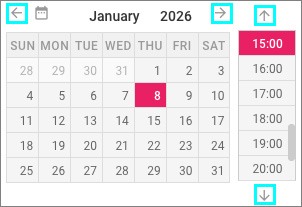
<i class="fa-computer-mouse">:computer-mouse:</i> Click  <i class="fa-calendar-days">:calendar-days:</i> **Starting Time** or <i class="fa-calendar-days">:calendar-days:</i> **Ending Time** in the upper-right corner to define the time range for the displayed information. The date picker opens.

<div align="left"><figure><img src="https://content.gitbook.com/content/V7OrHgKXA0t1jankQBYf/blobs/PGBGvX31iLdfgH5CY6NL/enginsight-screenshot-dashboard-start_endzeitpunkt.jpg" alt=""><figcaption></figcaption></figure></div>

<i class="fa-computer-mouse">:computer-mouse:</i> Click a date in the calendar view and select a time from the panel on the right to define a specific point in time. Use the arrow buttons to navigate between months or display additional times.

<i class="fa-computer-mouse">:computer-mouse:</i> Click **Reset Zoom** <i class="fa-arrows-rotate-reverse">:arrows-rotate-reverse:</i> above the dashboard to refresh all displayed information and return the view to the current time.

***

## Activities: Overview

The activities overview is structured as a table. The following information is shown:

<table><thead><tr><th width="199.98046875">Column</th><th>Description</th></tr></thead><tbody><tr><td>Action</td><td>Shows the name of the action that was performed, as well as the date and time when the corresponding log entry was created.</td></tr><tr><td>Reference</td><td><p>Shows which assets, users, organizations, features, or components of the Enginsight platform were affected by an action.</p><p></p><p>If the log entry relates to a configuration change, the specific change is also shown:</p><ul><li><strong>Green</strong> entries marked with a "<strong>+</strong>" indicate newly added or changed values.</li><li><strong>Red</strong> entries marked with a "<strong>-</strong>" indicate deleted values or previous values that were changed.</li></ul></td></tr><tr><td>Triggered By</td><td><p>Shows the name and email address of the user whose account was used to trigger the action.</p><div data-gb-custom-block data-tag="hint" data-style="info" class="hint hint-info"><p>This column is empty if the action was performed automatically by the platform.</p></div></td></tr></tbody></table>

***

## Further Resources

**Knowledge Base**

* [Which activities are recorded in the Enginsight user log?](https://docs.enginsight.com/docs/knowledge-base/english/logging/which-activities-are-recorded-in-the-enginsight-user-log)
* [How can I adjust the retention periods for my Enginsight logs?](https://docs.enginsight.com/docs/knowledge-base/english/logging/how-can-i-adjust-the-retention-periods-for-my-enginsight-logs)

***
