> For the complete documentation index, see [llms.txt](https://docs.enginsight.com/docs/llms.txt). Markdown versions of documentation pages are available by appending `.md` to page URLs; this page is available as [Markdown](https://docs.enginsight.com/docs/manual/english/administration/settings/groups.md).

# Groups

In the Groups settings, you can group team members together, for example to send alert notifications to groups instead of individual team members.

{% hint style="info" %}
**Please note:** Groups are independent of individual team member permissions. Permissions are always defined through [Roles](/docs/manual/english/administration/settings/roles.md).
{% endhint %}

***

<i class="fa-compass">:compass:</i> Navigate to **Settings** → **Groups** to display a list of all created groups. If you have not yet created any groups, this view will be empty.

From the [Groups Overview](#teammitglieder-ubersicht), you can see which groups have been created and which members belong to them.

You can also delete groups and [create new groups](#gruppe-hinzufugen).

***

## Navigation

<i class="fa-computer-mouse-scrollwheel">:computer-mouse-scrollwheel:</i> Scroll down to view additional entries in the list.

### Actions for List Items

<table><thead><tr><th width="200.234375">Aktion</th><th>Description</th></tr></thead><tbody><tr><td>Edit</td><td><i class="fa-computer-mouse">:computer-mouse:</i> Click the <strong>Edit</strong> icon <i class="fa-pen">:pen:</i> to open the <a href="#gruppen-bearbeitungsansicht">Edit View</a> of the corresponding group.</td></tr><tr><td>Delete</td><td><i class="fa-computer-mouse">:computer-mouse:</i> Click the <strong>Delete</strong> icon <i class="fa-trash">:trash:</i> and confirm the prompt by clicking <strong>Delete Permanently</strong> to remove the group.</td></tr></tbody></table>

***

## Groups: Overview

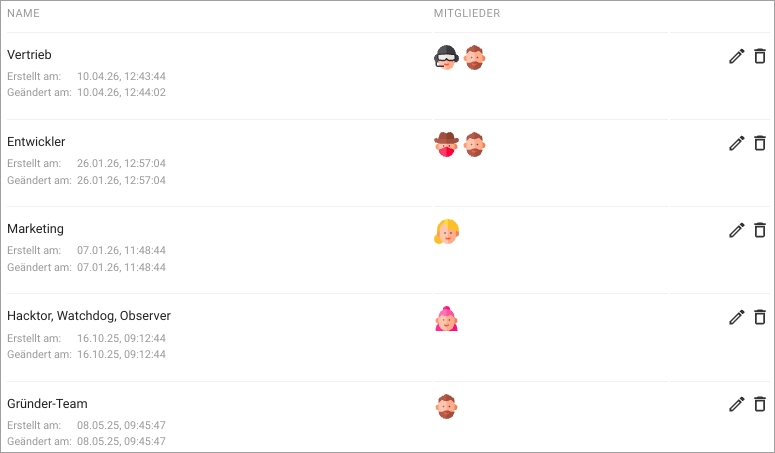
<figure><img src="https://content.gitbook.com/content/V7OrHgKXA0t1jankQBYf/blobs/EgGewYXbo4e9Ujnkvpua/Enginsight-Einstellungen-Gruppen-Uebersicht.jpg" alt=""><figcaption></figcaption></figure>

The Groups Overview is displayed as a table.

The following information is available:

<table><thead><tr><th width="199.9296875">Column</th><th>Description</th></tr></thead><tbody><tr><td>Name</td><td>Displays the custom name of the group and an additional description, if available. The creation date and time as well as the last modification date and time are also displayed.<br><br><i class="fa-computer-mouse">:computer-mouse:</i> Click the name of a group to open the corresponding <a href="#gruppen-bearbeitungsansicht">Edit View</a>.</td></tr><tr><td>Members</td><td>Displays the avatars of the team members assigned to the group.<br><br><i class="fa-computer-mouse">:computer-mouse:</i> Hover over an avatar to display the corresponding username.</td></tr></tbody></table>

***

## Adding a Group

<i class="fa-computer-mouse">:computer-mouse:</i> Click <i class="fa-plus">:plus:</i> **Create New Group** in the upper-right corner to create a new group.

The following options are available:

<table><thead><tr><th width="200.03515625">Option</th><th>Description</th></tr></thead><tbody><tr><td>Title</td><td>Assign a meaningful name to the group.</td></tr><tr><td>Description </td><td><p>Provide a more detailed description of the group.</p><div data-gb-custom-block data-tag="hint" data-style="info" class="hint hint-info"><p>This field is optional.</p></div></td></tr><tr><td>Members</td><td><p>Specify the team members that should be added to the group.</p><p></p><p><i class="fa-computer-mouse">:computer-mouse:</i> Click the <strong>Members</strong> field to display a list of all available team members and select one or more entries. Alternatively, use the free-text search field to find team members more quickly. </p><p></p><p>Added team members are displayed as a list below the <strong>Members</strong> field.</p><p><br><i class="fa-computer-mouse">:computer-mouse:</i> Click the <strong>Delete</strong> icon <i class="fa-trash">:trash:</i> at the end of a list item to remove the corresponding team member from the group.</p></td></tr></tbody></table>

<i class="fa-computer-mouse">:computer-mouse:</i> Click **Save** after configuring all settings to create the new group.

***

## Group: Edit View

<i class="fa-computer-mouse">:computer-mouse:</i> Click the name of a group to open the corresponding edit view. Here you can modify group information and add or remove team members.

<i class="fa-computer-mouse">:computer-mouse:</i> Click **Save** after making changes to the settings.

***
