| Option | Description |
|---|---|
| Name of the Organisation | Enter the name of the organization that is responsible for the support. |
| Enter the email address where the support can be reached. | |
| Phone Number | Enter the phone number where the support can be reached. This field is optional. |
| Website | Enter the website of the organization that is responsible for the support, or the website where the support can be reached, for example via a contact form. This field is optional. |
| Parameter | Description |
|---|---|
colors | Enter the accent color for the platform using the HSL color model:
|
tabTitle | Enter the text that should be displayed as the browser tab title. |
favicon | Enter the full path, including https:// or http://, to a favicon that should be displayed for example on the browser tab. Supported formats are ICO and PNG. |
company | Enter the name of your company. |
companySlug | Enter a short name for your company. |
about | Enter a short description of your company. |
website | Enter your company website, including www. Example: www.company.com |
logo | Add your main logo, for example a wordmark and icon, directly to the configuration as an .svg file. See the example configuration below. Only the SVG format is supported. |
logoIcon | Add an approximately square logo, for example the icon only, directly to the configuration as an .svg file. See the example configuration below. Only the SVG format is supported. |
offlineBackgroundImage | Optionally enter the full path, including https:// or http://, to a background image for the login page. Supported formats are PNG and JPG. |
offlineBackgroundImageWithoutText | Define how the login page should be displayed.
|
corporateIdentity: {
    colors: {
        primaryH: '208',
        primaryS: '66%',
        primaryL: '60%'
    },
    tabTitle: 'Company Security',
    favicon: 'https://company.com/favicon.ico',
    company: 'Company GmbH',
    companySlug: 'Company',
    about: 'Best Security Monitoring of the World',
    website: 'www.company.com',
    logo: '<svg xmlns="http://www.w3.org/2000/svg" xmlns:xlink="http://www.w3.org/1999/xlink" viewBox="0 0 410.84 87.9"><defs><style>.cls-1{fill:url(#linear-gradient);}.cls-2{fill:#58595b;}</style><linearGradient id="linear-gradient" x1="39.42" x2="39.42" y2="87.9" gradientUnits="userSpaceOnUse"><stop offset="0" stop-color="#fc7808"/><stop offset="0.43" stop-color="#ff006c"/><stop offset="0.79" stop-color="#8338ea"/><stop offset="1" stop-color="#3887fe"/></linearGradient></defs><g id="OBJECTS"><path class="cls-1" d="M39.42,14.1l2.71,1.56V6.27L39.42,4.7,36.7,6.27v9.39ZM59.84,32.16,65.27,29,42.13,15.66v6.27ZM0,24.32V63.58l5.43-3.13v-33Zm78.84-3.13L42.13,0V6.27L73.41,24.33ZM2.71,68.27l34,19.63V81.63L8.14,65.14ZM36.7,0l-34,19.62,5.43,3.14L36.7,6.27Zm-15,30.59,15-8.66V15.66L16.28,27.46ZM39.42,73.8,36.7,72.24v9.39l2.72,1.57,2.71-1.57V72.24ZM59.84,55.74,42.13,66v6.27L65.27,58.87ZM42.13,81.63V87.9L78.84,66.71l-5.43-3.14ZM13.57,29l2.71-1.57-8.14-4.7L5.43,24.33v3.12l8.14,4.7ZM36.7,66l-15-8.66-5.43,3.13L36.7,72.24ZM19,52.61V35.29l-5.42-3.14v23.6Zm-5.42,6.26V55.75l-8.14,4.7v3.12l2.71,1.57,8.14-4.7Z"/><path class="cls-2" d="M104.2,44c0-11.91,9.11-20.35,21.52-20.35,7.21,0,13,2.63,16.82,7.38l-7,6.37a11.57,11.57,0,0,0-9.22-4.58c-6.43,0-10.9,4.47-10.9,11.18s4.47,11.18,10.9,11.18a11.57,11.57,0,0,0,9.22-4.58l7,6.37c-3.8,4.75-9.61,7.37-16.82,7.37C113.31,64.29,104.2,55.85,104.2,44Z"/><path class="cls-2" d="M144.61,44c0-11.74,9.22-20.35,21.74-20.35S188.1,32.21,188.1,44s-9.23,20.34-21.75,20.34S144.61,55.69,144.61,44Zm32.31,0c0-6.76-4.64-11.18-10.57-11.18S155.79,37.19,155.79,44s4.64,11.18,10.56,11.18S176.92,50.71,176.92,44Z"/><path class="cls-2" d="M229.23,63.51l-.11-20.73L219.06,59.66h-4.92l-10-16.33V63.51H193.91V24.39H203L216.77,47l13.41-22.58h9.12l.11,39.12Z"/><path class="cls-2" d="M282.5,38.86c0,8.89-6.7,14.42-17.38,14.42H258.3V63.51H247.23V24.39h17.89C275.8,24.39,282.5,29.92,282.5,38.86Zm-11.18,0c0-3.63-2.29-5.75-6.87-5.75H258.3V44.56h6.15C269,44.56,271.32,42.44,271.32,38.86Z"/><path class="cls-2" d="M312.13,55.91H295.58l-3.07,7.6H281.22l17.27-39.12h10.9l17.33,39.12H315.2Zm-3.24-8.16-5-12.52-5,12.52Z"/><path class="cls-2" d="M367.07,24.39V63.51H358L340.69,42.66V63.51H329.85V24.39H339l17.27,20.84V24.39Z"/><path class="cls-2" d="M395.86,49.48v14H384.79V49.31L369.87,24.39h11.68l9.28,15.54,9.28-15.54h10.73Z"/></g></svg>',
    logoIcon: '<svg xmlns="http://www.w3.org/2000/svg" xmlns:xlink="http://www.w3.org/1999/xlink" viewBox="0 0 78.84 87.9"><defs><style>.cls-1{fill:url(#linear-gradient);}</style><linearGradient id="linear-gradient" x1="39.42" x2="39.42" y2="87.9" gradientUnits="userSpaceOnUse"><stop offset="0" stop-color="#fc7808"/><stop offset="0.43" stop-color="#ff006c"/><stop offset="0.79" stop-color="#8338ea"/><stop offset="1" stop-color="#3887fe"/></linearGradient></defs><g id="OBJECTS"><path class="cls-1" d="M39.42,14.1l2.71,1.56V6.27L39.42,4.7,36.7,6.27v9.39ZM59.84,32.16,65.27,29,42.13,15.66v6.27ZM0,24.32V63.58l5.43-3.13v-33Zm78.84-3.13L42.13,0V6.27L73.41,24.33ZM2.71,68.27l34,19.63V81.63L8.14,65.14ZM36.7,0l-34,19.62,5.43,3.14L36.7,6.27Zm-15,30.59,15-8.66V15.66L16.28,27.46ZM39.42,73.8,36.7,72.24v9.39l2.72,1.57,2.71-1.57V72.24ZM59.84,55.74,42.13,66v6.27L65.27,58.87ZM42.13,81.63V87.9L78.84,66.71l-5.43-3.14ZM13.57,29l2.71-1.57-8.14-4.7L5.43,24.33v3.12l8.14,4.7ZM36.7,66l-15-8.66-5.43,3.13L36.7,72.24ZM19,52.61V35.29l-5.42-3.14v23.6Zm-5.42,6.26V55.75l-8.14,4.7v3.12l2.71,1.57,8.14-4.7Z"/></g></svg>',
    offlineBackgroundImage: '',
    offlineBackgroundImageWithoutText: false
},
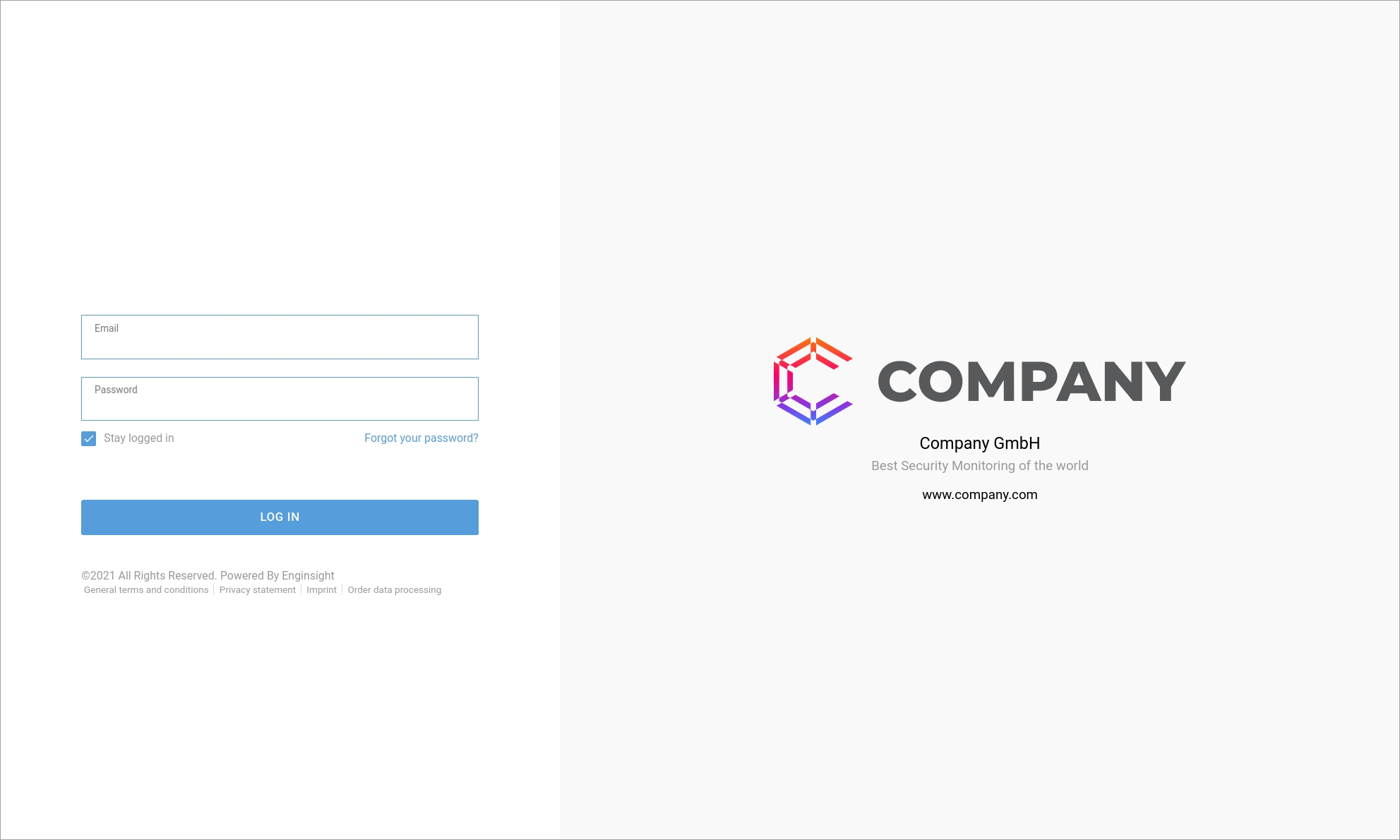
corporateIdentity: {
    colors: {
        primaryH: '208',
        primaryS: '66%',
        primaryL: '60%'
    },
    tabTitle: 'Company Security',
    favicon: 'https://company.com/favicon.ico',
    company: 'Company GmbH',
    companySlug: 'Company',
    about: 'Best Security Monitoring of the World',
    website: 'www.company.com',
    logo: '<svg xmlns="http://www.w3.org/2000/svg" xmlns:xlink="http://www.w3.org/1999/xlink" viewBox="0 0 410.84 87.9"><defs><style>.cls-1{fill:url(#linear-gradient);}.cls-2{fill:#58595b;}</style><linearGradient id="linear-gradient" x1="39.42" x2="39.42" y2="87.9" gradientUnits="userSpaceOnUse"><stop offset="0" stop-color="#fc7808"/><stop offset="0.43" stop-color="#ff006c"/><stop offset="0.79" stop-color="#8338ea"/><stop offset="1" stop-color="#3887fe"/></linearGradient></defs><g id="OBJECTS"><path class="cls-1" d="M39.42,14.1l2.71,1.56V6.27L39.42,4.7,36.7,6.27v9.39ZM59.84,32.16,65.27,29,42.13,15.66v6.27ZM0,24.32V63.58l5.43-3.13v-33Zm78.84-3.13L42.13,0V6.27L73.41,24.33ZM2.71,68.27l34,19.63V81.63L8.14,65.14ZM36.7,0l-34,19.62,5.43,3.14L36.7,6.27Zm-15,30.59,15-8.66V15.66L16.28,27.46ZM39.42,73.8,36.7,72.24v9.39l2.72,1.57,2.71-1.57V72.24ZM59.84,55.74,42.13,66v6.27L65.27,58.87ZM42.13,81.63V87.9L78.84,66.71l-5.43-3.14ZM13.57,29l2.71-1.57-8.14-4.7L5.43,24.33v3.12l8.14,4.7ZM36.7,66l-15-8.66-5.43,3.13L36.7,72.24ZM19,52.61V35.29l-5.42-3.14v23.6Zm-5.42,6.26V55.75l-8.14,4.7v3.12l2.71,1.57,8.14-4.7Z"/><path class="cls-2" d="M104.2,44c0-11.91,9.11-20.35,21.52-20.35,7.21,0,13,2.63,16.82,7.38l-7,6.37a11.57,11.57,0,0,0-9.22-4.58c-6.43,0-10.9,4.47-10.9,11.18s4.47,11.18,10.9,11.18a11.57,11.57,0,0,0,9.22-4.58l7,6.37c-3.8,4.75-9.61,7.37-16.82,7.37C113.31,64.29,104.2,55.85,104.2,44Z"/><path class="cls-2" d="M144.61,44c0-11.74,9.22-20.35,21.74-20.35S188.1,32.21,188.1,44s-9.23,20.34-21.75,20.34S144.61,55.69,144.61,44Zm32.31,0c0-6.76-4.64-11.18-10.57-11.18S155.79,37.19,155.79,44s4.64,11.18,10.56,11.18S176.92,50.71,176.92,44Z"/><path class="cls-2" d="M229.23,63.51l-.11-20.73L219.06,59.66h-4.92l-10-16.33V63.51H193.91V24.39H203L216.77,47l13.41-22.58h9.12l.11,39.12Z"/><path class="cls-2" d="M282.5,38.86c0,8.89-6.7,14.42-17.38,14.42H258.3V63.51H247.23V24.39h17.89C275.8,24.39,282.5,29.92,282.5,38.86Zm-11.18,0c0-3.63-2.29-5.75-6.87-5.75H258.3V44.56h6.15C269,44.56,271.32,42.44,271.32,38.86Z"/><path class="cls-2" d="M312.13,55.91H295.58l-3.07,7.6H281.22l17.27-39.12h10.9l17.33,39.12H315.2Zm-3.24-8.16-5-12.52-5,12.52Z"/><path class="cls-2" d="M367.07,24.39V63.51H358L340.69,42.66V63.51H329.85V24.39H339l17.27,20.84V24.39Z"/><path class="cls-2" d="M395.86,49.48v14H384.79V49.31L369.87,24.39h11.68l9.28,15.54,9.28-15.54h10.73Z"/></g></svg>',
    logoIcon: '<svg xmlns="http://www.w3.org/2000/svg" xmlns:xlink="http://www.w3.org/1999/xlink" viewBox="0 0 78.84 87.9"><defs><style>.cls-1{fill:url(#linear-gradient);}</style><linearGradient id="linear-gradient" x1="39.42" x2="39.42" y2="87.9" gradientUnits="userSpaceOnUse"><stop offset="0" stop-color="#fc7808"/><stop offset="0.43" stop-color="#ff006c"/><stop offset="0.79" stop-color="#8338ea"/><stop offset="1" stop-color="#3887fe"/></linearGradient></defs><g id="OBJECTS"><path class="cls-1" d="M39.42,14.1l2.71,1.56V6.27L39.42,4.7,36.7,6.27v9.39ZM59.84,32.16,65.27,29,42.13,15.66v6.27ZM0,24.32V63.58l5.43-3.13v-33Zm78.84-3.13L42.13,0V6.27L73.41,24.33ZM2.71,68.27l34,19.63V81.63L8.14,65.14ZM36.7,0l-34,19.62,5.43,3.14L36.7,6.27Zm-15,30.59,15-8.66V15.66L16.28,27.46ZM39.42,73.8,36.7,72.24v9.39l2.72,1.57,2.71-1.57V72.24ZM59.84,55.74,42.13,66v6.27L65.27,58.87ZM42.13,81.63V87.9L78.84,66.71l-5.43-3.14ZM13.57,29l2.71-1.57-8.14-4.7L5.43,24.33v3.12l8.14,4.7ZM36.7,66l-15-8.66-5.43,3.13L36.7,72.24ZM19,52.61V35.29l-5.42-3.14v23.6Zm-5.42,6.26V55.75l-8.14,4.7v3.12l2.71,1.57,8.14-4.7Z"/></g></svg>',
    offlineBackgroundImage: 'https://company.com/images/background.png',
    offlineBackgroundImageWithoutText: true
},